Introduction
Shared office printers create a quiet but real security problem. You send a document, get pulled into a meeting, and by the time you reach the printer, your confidential report is sitting in the output tray — visible to anyone who walks by. According to a Shred-it study referencing Ponemon research, 71% of managers had witnessed confidential documents left unattended on a printer.
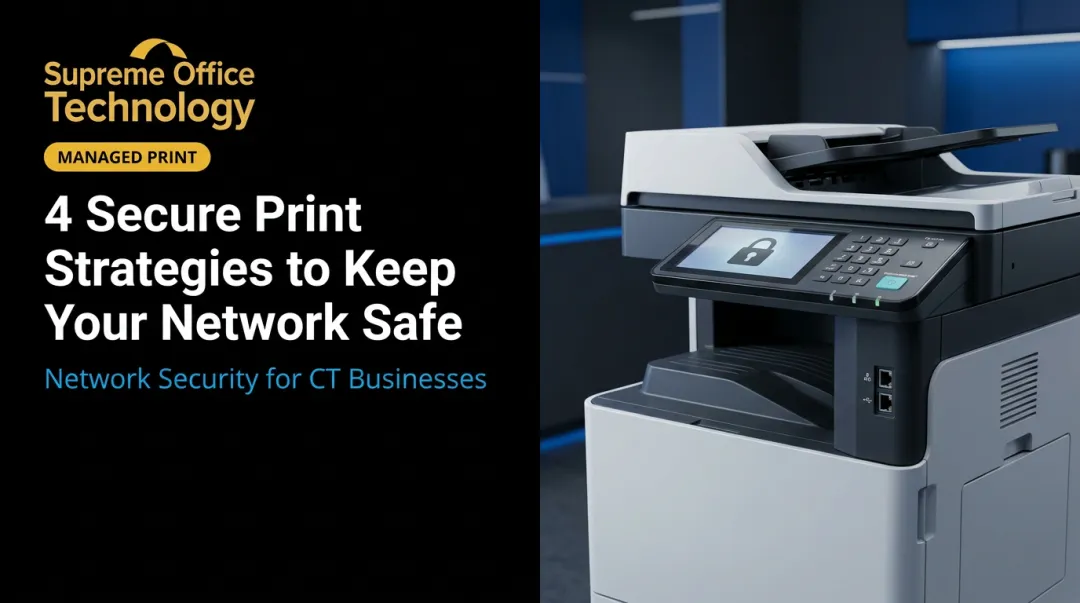
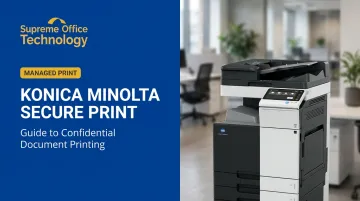
Konica Minolta Secure Print addresses this directly. Built into most bizhub multifunction printers (MFPs), it holds your print job in a protected queue on the device until you walk up and authenticate with a personal ID and password — so documents only print when you're standing there to collect them.
Here's what this guide covers: how to configure and use Secure Print on Windows and Mac, how to release jobs at the printer control panel, and which best practices actually reduce document exposure risk in daily office use.
Key Takeaways
- Secure Print holds your job in a password-protected User Box on the device — nothing prints until you authenticate at the panel
- Setup requires only a few steps inside the Konica Minolta printer driver on Windows or Mac
- You must create a Secure Print ID and password before sending the job; without them, the document can't be released
- Uncollected jobs auto-delete after an admin-defined period (most models default to 1 day)
- Legal, medical, HR, and financial teams should treat Secure Print as standard practice for any sensitive document
When Should You Use Konica Minolta Secure Print?
The short answer: any time you're printing something you wouldn't leave on a conference table.
That means legal contracts, patient intake forms, HR records, financial statements, salary data, or anything containing personal identification information. The "it's just a back office printer" assumption is exactly where exposure happens — because delays are unpredictable and print trays don't lock.
Industries Where This Matters Most
Certain environments carry compliance obligations that make Secure Print less optional and more necessary:
- Healthcare — HIPAA Physical Safeguards (45 CFR 164.310) require facility access controls and device security for electronic protected health information systems
- Legal — ABA Model Rule 1.6 requires lawyers to protect client information from unauthorized or inadvertent disclosure, including competent safeguarding of physical documents
- Financial services — SEC Regulation S-P requires written administrative, technical, and physical safeguards for customer records, including paper form
Standard printing — no ID, no password, prints immediately — is appropriate only for non-sensitive documents where confidentiality isn't a concern. For anything else, Secure Print is the safer default.
What You Need Before Using Secure Print
Three prerequisites apply before you can use this feature:
Compatible hardware — Most current bizhub i-Series models (including the C651i) include a standard 256 GB self-encrypting SSD with Secure Print enabled by default. Older models like the bizhub 367/287/227 class require an optional internal Hard Disk. Check with your IT administrator or dealer to confirm your device's configuration.
A Konica Minolta printer driver installed and configured on your computer — The driver is what surfaces the Output Method setting. Without it, you won't see the Secure Print option in your print dialog. This applies to both Windows and Mac environments.
A Secure Print ID and password — You create both during the print setup process. Both are case-sensitive, and there is no recovery option: forgotten credentials mean the job must be re-sent with new ones.
How to Use Konica Minolta Secure Print: Step-by-Step
Secure Print follows a two-part sequence: configure the job on your computer, then authenticate and release it at the device. Skipping either step means the job either doesn't hold properly or can't be matched at the printer.
Setting Up Secure Print on Windows
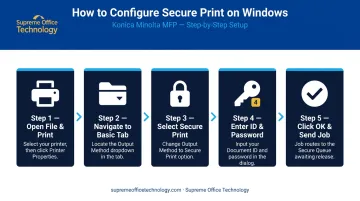
- Open your file, go to File > Print, select your Konica Minolta printer, and click Printer Properties or Printing Preferences
- Navigate to the Basic tab (or My Tab on some driver versions) and find the Output Method dropdown
- Change the setting from Print to Secure Print
- A dialog box will prompt you to enter a Document ID and Password — use credentials you'll remember; note the character limit displayed on screen
- Click OK to save, then send the job — it will route to the Secure Print User Box on the device
Note: Changing Output Method to Secure Print permanently at the driver level holds every future job in the queue. Apply it per-job through the print dialog to avoid blocking routine, non-sensitive documents.
If you forget your credentials, return to Printing Preferences to view or update them. Re-send any jobs already in the queue under old credentials once it clears.
Setting Up Secure Print on Mac
- Go to File > Print and expand the Printer Options panel
- From the middle dropdown menu, select Output Method
- Choose Secure Print from the list
- Enter your Document ID and Password in the fields provided
- Click OK, then click Print — the job moves to the Secure Print User Box on the device
The Mac interface looks different from Windows, but the steps follow the same logic through the Konica Minolta driver panel.
Releasing Your Secure Print Job at the Printer
Once you're standing at the bizhub MFP:
- Tap Box on the touchscreen, then navigate to System > Secure Print
- Enter your Document ID — this field is case-sensitive
- Enter your Password and tap OK
- A list of your queued jobs will appear — select the document(s) you want to print
- Tap Print, confirm any settings (copies, color mode), and press the physical Start button
Only jobs matching your entered credentials appear on screen. Once printed:
- Jobs clear from the User Box automatically — no manual deletion required
- Unretrieved jobs stay in the queue until the auto-delete period expires
- The default retention period on most Konica Minolta models is 1 day
Where Konica Minolta Secure Print Is Used in Practice
Quocirca's 2025 Print Security Landscape report found that 56% of organizations experienced a print-related data loss in the previous year. That figure was 67% in 2024 — improvement, but still a majority of businesses.
Secure Print sees active use wherever shared printing intersects with confidentiality requirements:
- Law firms — case files, contracts, settlement documents, and privileged correspondence
- Medical offices — patient intake forms, lab results, referral letters, and insurance records
- HR departments — offer letters, performance reviews, disciplinary records, and payroll documents
- Financial institutions — account statements, audit reports, loan files, and compliance documentation
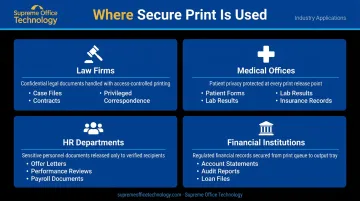
In each case, unattended printouts create direct compliance exposure — not just an operational inconvenience.
Educational institutions and large open-plan corporate offices face the same risk. When dozens of users share a single device, documents can sit uncollected for minutes — long enough for the wrong person to walk by.
For Connecticut businesses managing these environments, proper configuration matters as much as the feature itself. Supreme Office Technology — an authorized Konica Minolta dealer serving New Haven, Waterbury, and Middletown for over 40 years — helps organizations set up Secure Print and user authentication policies across their full device fleet.
Best Practices for Using Secure Print Effectively
Following the two-step setup isn't enough on its own. These habits close the remaining gaps:
- Make Secure Print the department default for any document classified as sensitive or confidential — removing the case-by-case decision eliminates the most common failure point (someone assuming they'll retrieve it quickly)
- Use distinct credentials not shared with colleagues and not reused from other systems; update your Secure Print ID periodically, particularly in environments with staff turnover
- Retrieve documents promptly after sending the job — even though output only prints after authentication, pages in the output tray are no longer protected once printed
- Administrators: configure auto-delete intervals under System Settings > User Box Setting > Delete Time Setting; a window of 4–24 hours works for most offices and prevents uncollected jobs from accumulating in device storage indefinitely
One often-overlooked point: Secure Print protects the document while it's waiting to print. The moment pages land in the output tray, physical security at the device becomes the next line of defense — so placement and access control at the printer itself deserve the same attention as the PIN.
Frequently Asked Questions
What does "secure print" mean on a printer?
Secure Print is a feature that holds your print job in a password-protected queue on the device rather than printing immediately. The document only prints when you walk to the printer and enter your assigned ID and password at the control panel.
How long are secure print jobs stored on Konica Minolta devices?
Storage duration depends on the administrator's configuration. By default, most Konica Minolta models auto-delete Secure Print jobs after 1 day, but this interval can be adjusted in Administrator Settings under System Settings > User Box Setting > Delete Time Setting.
Can I use Konica Minolta Secure Print on a Mac?
Yes. Secure Print is available on Mac by accessing the Output Method setting within the Konica Minolta printer driver during the print process, using the same Document ID and password fields as the Windows driver.
What is the difference between Secure Print and ID & Print on Konica Minolta?
Secure Print uses a document-specific ID and password you create in the driver before sending each job. ID & Print uses your network login credentials registered on the device — it's more seamless in environments where user authentication is already configured on the MFP.
What happens if I forget my Secure Print ID or password?
Return to Printer Properties or Printing Preferences on your computer to re-enter your credentials. Jobs already sent under the forgotten ID must be re-sent once the old jobs are cleared from the queue.
Do I need special hardware to enable Secure Print on a Konica Minolta?
Most modern bizhub MFPs support Secure Print natively via built-in SSD storage. Some older models, including the bizhub 367/287/227 class, require an optional internal Hard Disk. Verify your device's storage configuration with your IT administrator or an authorized dealer before enabling Secure Print.