Introduction
Most IT security checklists cover firewalls, endpoint protection, and email filtering. Printers rarely make the list. That oversight is costing organizations.
Quocirca's 2024 Print Security Landscape report found that 67% of organizations experienced at least one print-related data loss incident in a single year. For Connecticut businesses in healthcare, legal, and financial services, that statistic translates into HIPAA violations, exposed client files, and regulatory penalties.
The core problem is that network printers aren't passive office equipment — they're active endpoints with operating systems, internal storage, and network interfaces. Left unsecured, they're as exploitable as any server or workstation.
Below are four practical strategies to close those gaps: restricting access, encrypting data in transit, implementing secure print release, and locking down scanning with audit trails.
Key Takeaways
- Network printers are full endpoints and must be secured like any other connected device
- Access controls tied to user authentication stop unauthorized printing and network intrusion
- TLS encryption prevents print jobs from being intercepted during transmission
- Pull printing eliminates confidential documents sitting unattended in output trays
- Scanning requires the same authentication and logging as printing — treat it as an equal security concern
Why Network Printers Are a Hidden Security Risk
Modern multifunction printers (MFPs) are sophisticated networked devices. They run embedded operating systems, maintain internal hard drives or flash storage, expose multiple network services, and often sit on the same network segment as file servers and workstations.
That architecture creates real exposure. According to Ricoh's 2023 MFP/Printer Security White Paper, leaving MFP network ports open can lead to stored-data destruction, denial of service, unauthorized device use, and full network intrusion. Xerox similarly notes that MFP hard drives and memory may retain image data, authentication credentials, and configuration information long after jobs complete.
The Specific Threats Worth Understanding
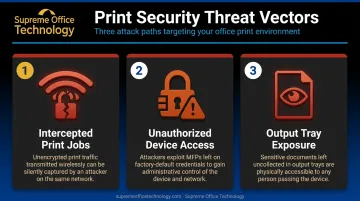
Three attack vectors account for most print-related incidents:
- Intercepted print jobs — unencrypted traffic traveling between a workstation and printer can be captured by anyone on the same network segment
- Unauthorized device access — an unsecured MFP with a default admin password gives an attacker access to stored documents and network configuration
- Output tray exposure — sensitive documents printed but never collected sit in open trays where any passerby can pick them up
Why Compliance Makes This Non-Negotiable
For regulated industries, unsecured print environments aren't just a security problem — they're a liability. Three major frameworks apply directly to print environments:
- HIPAA — requires technical safeguards for any system handling electronic protected health information (ePHI)
- FERPA — covers student education records at federally funded schools
- PCI DSS — governs any environment where cardholder data is printed, scanned, or stored
If your Connecticut organization operates in any of these sectors, your print environment is already in scope — which means the four strategies below aren't optional.
The 4 Secure Print Strategies to Protect Your Network
Strategy 1: Restrict Printer Access to Authorized Users Only
The guest printing problem is more common than most organizations realize. When contractors, freelancers, or building visitors are allowed to connect to the main network to print, they gain a foothold inside the infrastructure. That access doesn't disappear after the print job finishes.
For external users: Route print submissions through a secure, isolated email address or dedicated print portal. External users submit jobs without ever touching the corporate network, eliminating the access risk without disrupting their workflow.
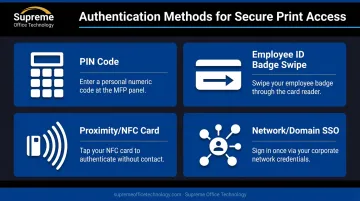
For internal staff: Require authentication before any print job is released. Common methods include:
- PIN codes entered at the device panel
- Employee ID badge swipes via a card reader
- Proximity or NFC cards (the same credentials used for building access)
- Network/domain credential integration (single sign-on)
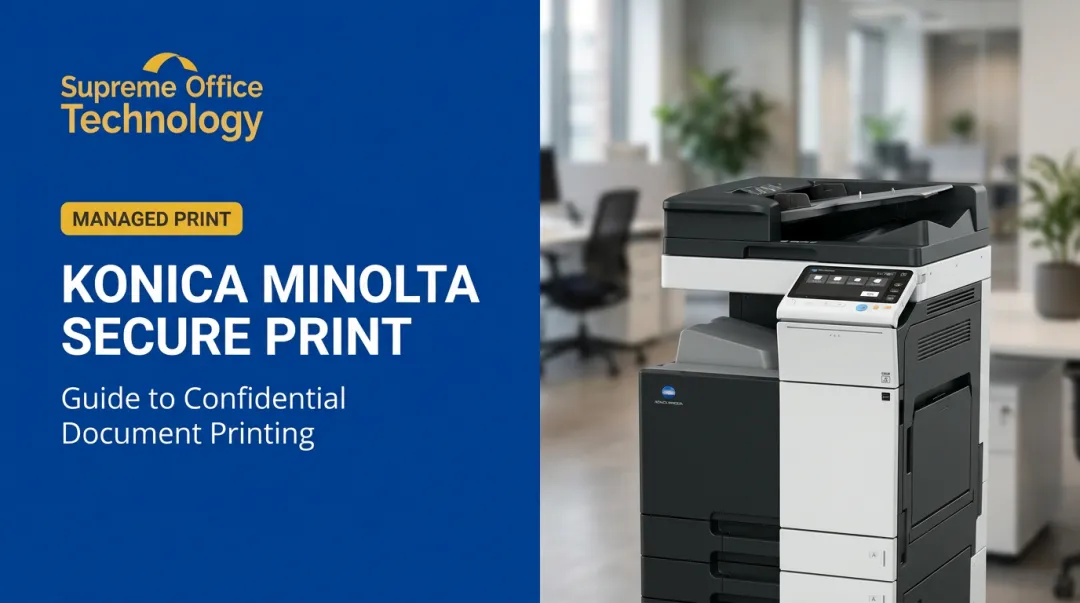
Konica Minolta MFPs — including the bizhub i-Series models Supreme Office Technology carries — support touchscreen-based credential login natively, with IC card authentication available via an add-on card reader. This means many Connecticut businesses may already have the hardware to implement user-based access controls without additional software investment.
Strategy 2: Encrypt Print Data in Transit
When a print job travels from a workstation to a printer without encryption, it moves across the network as readable data. Anyone with access to that network segment — or positioned between the workstation and device — can intercept and read it.
This is especially relevant in environments with:
- Shared Wi-Fi networks
- Remote workers printing over VPNs or cloud connections
- Multi-site setups where print traffic crosses wide-area links
How encryption addresses this: The IPPS protocol (IPP over HTTPS) wraps print traffic in TLS encryption, providing the same protection as an HTTPS web connection. HP's Secure Print documentation specifies TLS 1.2 for data in transit and AES-256 for data at rest. Older protocols like LPR/LPD and SMB1 provide no encryption and should be disabled.
Mobile printing requires the same treatment. Employees printing from personal smartphones or tablets may be using devices that don't meet corporate security standards. Enforcing encrypted submission and requiring authentication before release — whether via PIN, badge, or QR code scan — keeps mobile print jobs as secure as desktop jobs.
Supreme Office Technology's PaperCut partnership is directly relevant here. PaperCut supports encrypted print submission across Windows, Mac, iOS, and Android devices, with authentication controls that apply regardless of the device type used to submit the job.
Strategy 3: Implement Secure Print Release (Pull Printing)
Pull printing changes the timing of when a document physically appears. Instead of printing immediately after submission, the job is held in a secure queue. It only releases when the authorized user walks to the device and authenticates — using a PIN, badge, or access card.
Why this matters for sensitive documents:
HR files, financial statements, patient records, and legal briefs are frequently printed in shared environments where multiple people pass by the output tray. With standard printing, anyone who arrives at the device before the intended recipient can pick up that document. Pull printing eliminates that window entirely.
Ricoh defines secured print release as holding jobs in a queue until the user releases them at the printer. PaperCut extends that further — spool files are protected with AES-256-GCM encryption while jobs wait in the queue, so the held data itself is never exposed.
There's a secondary benefit: Jobs submitted but never released — because the user forgot, changed their mind, or got pulled into a meeting — are automatically deleted. This eliminates abandoned printouts accumulating in output trays and reduces paper and toner consumption. The same feature handles both security and cost efficiency.
For Supreme Office Technology's clients, both Konica Minolta's native Secure Follow-You Printing and PaperCut's Find-Me Printing implement this workflow across mixed-device fleets.
Strategy 4: Require Authentication for Scanning and Maintain Audit Trails
Scanning is the overlooked half of MFP security. Most devices allow any user to walk up, scan a document, and email it to any address — with no login required and no record of what was sent. That's a data exfiltration channel operating completely in the open.
Require the same authentication for scanning that you require for printing. Users authenticate at the device before the scan function becomes available, tying every scan action to a verified identity. Ricoh's documentation confirms that user permissions can restrict scanning and email-sending functions by authenticated user.
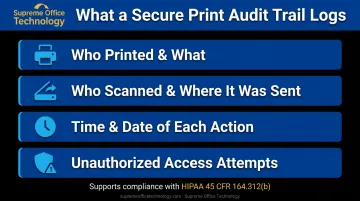
Audit trails add the accountability layer. A properly configured MFP or print management platform logs:
- Who printed, and what
- Who scanned, and where it was sent
- What time each action occurred
- Any attempted unauthorized access
This log serves three functions: internal accountability, early detection of unusual behavior (a user suddenly scanning hundreds of pages is worth investigating), and documentation for regulatory compliance audits.
For HIPAA-covered entities, audit controls are not optional. 45 CFR 164.312(b) explicitly requires mechanisms that record and examine activity in systems containing ePHI.
An MFP that scans patient records without logging that activity is a compliance gap — and potentially a reportable breach waiting to happen.
A 2013 HHS enforcement action against Affinity Health Plan resulted in a $1,215,780 settlement after the organization returned leased photocopiers without wiping the hard drives, exposing protected health information for up to 344,579 individuals. The breach source was the device itself — not a server or workstation.
Common Secure Print Mistakes to Avoid
Even organizations that actively work to secure their print environments leave gaps — and three mistakes account for most of the residual risk.
Leaving Default Administrator Passwords Unchanged
In 2025, Rapid7 reported that 689 Brother printer and MFP models had a vulnerability where an unauthenticated attacker could derive the device's default administrator password, scored at CVSS 9.8. Default passwords give attackers access to the device's embedded web server, where they can alter settings, intercept jobs, or pivot into the broader network. Change default credentials immediately on every device.
Securing Only Some Devices
An organization might configure pull printing and user authentication on the main office MFP while leaving a departmental printer or remote office device completely open. Every networked device needs to be covered — no exceptions. A single unsecured endpoint is enough.
Treating Setup as a One-Time Task
HP's 2025 research found that only 36% of IT teams apply printer firmware updates promptly, leaving most organizations running devices with known, unpatched vulnerabilities. Firmware updates, access permission reviews, and audit log monitoring must be scheduled and recurring — not completed once at installation and forgotten.
Conclusion
Access control, encryption, pull printing, and scan authentication work as overlapping layers — each one closes gaps the others can't cover alone. Together, they create a print environment that meets the baseline expectations of regulated industries and holds up under compliance scrutiny.
For Connecticut businesses ready to evaluate where their current print environment stands, Supreme Office Technology offers no-obligation assessments to identify security gaps. Many Konica Minolta MFPs already include built-in authentication and secure print capabilities, and platforms like PaperCut extend those controls across entire fleets — so in many cases, the infrastructure is already in place.
Contact Supreme Office Technology at (203) 239-6511 or info@supremeofficetechnology.com to schedule an assessment.
Frequently Asked Questions
How does secure print work?
Secure print holds a submitted job in an encrypted queue rather than printing it immediately. The document only releases when the authorized user physically authenticates at the device — via PIN, badge, or access card — ensuring only the intended recipient collects it.
Can my boss see what I print at work?
In organizations with print management software and audit logging enabled, administrators can view records of who printed what documents and when. This is standard functionality in secure print environments and the same accountability mechanism organizations rely on to meet regulatory compliance requirements.
What is the difference between secure print and regular printing?
Regular printing outputs a document immediately after submission with no verification. Secure printing requires the user to authenticate at the device before the job releases, preventing unauthorized access and eliminating the risk of documents sitting uncollected in output trays.
Do I need special software to enable secure printing?
Many modern MFPs have secure print functionality built in. Organizations with larger or mixed-brand fleets typically benefit from print management platforms like PaperCut, which enforce consistent policies including authentication, encryption, and audit logging across all devices from a single interface.
Which industries need secure printing the most?
Healthcare (HIPAA), legal (client confidentiality), financial services, education (FERPA), and government face the clearest regulatory requirements. For these industries, secure printing isn't just a best practice — it's a direct compliance requirement with real regulatory consequences for violations.
Can secure printing help with HIPAA compliance?
Yes. Secure print features — authentication, TLS encryption, and audit trails — directly map to HIPAA technical safeguard requirements under 45 CFR 164.312, including access control (§164.312(a)), audit controls (§164.312(b)), person authentication (§164.312(d)), and transmission security (§164.312(e)).